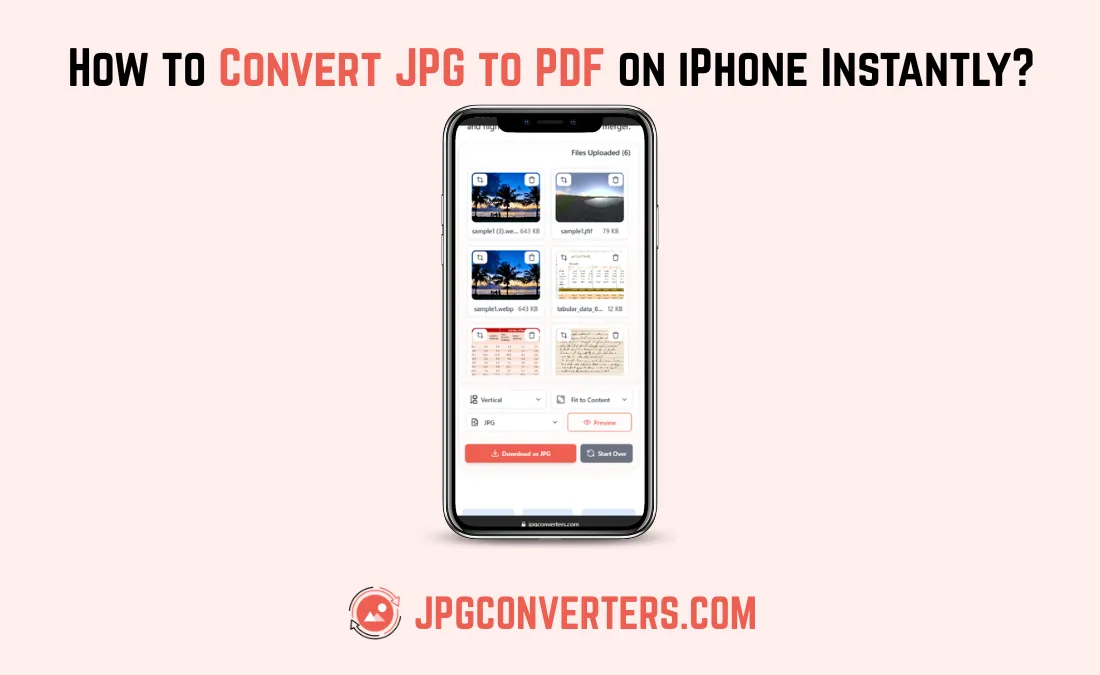
Why Convert a Photo to PDF on iPhone?
PDF is the most trusted format for sharing documents. This is the reason that people convert iPhone photos to PDF all the time.
PDFs look the same on every device. The formatting never breaks. They are easy to email, print, and upload to any platform.
If you are a freelancer sending an invoice photo, a student submitting a scanned assignment, or a business owner sharing product images, a PDF is the right format to use.
Now, let us get into the how.
The Easiest Way: Use JPGConverters.com on Your iPhone
Open Safari or Chrome on your iPhone and go to www.jpgconverters.com. No app install. No account. Just upload, convert, and download — all from your browser.
How to Convert a Single Image to PDF on iPhone
Follow these simple steps to convert image to PDF file on your iPhone.
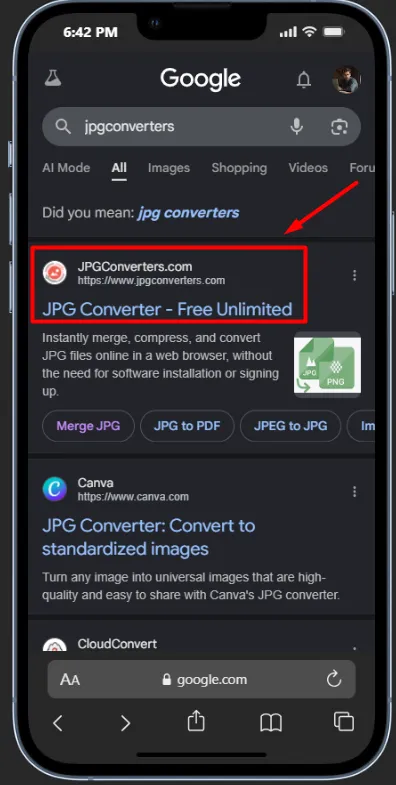
1 Open JPGConverters.com on your iPhone
Open Safari or Chrome on your iPhone. Go to www.jpgconverters.com
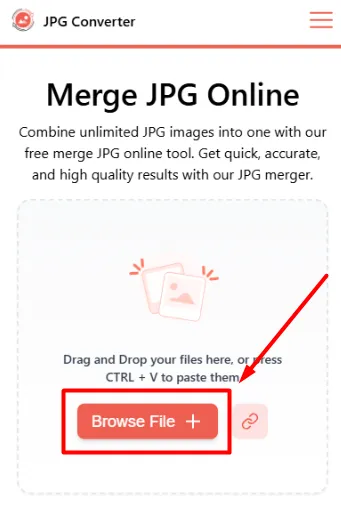
2 Upload Your Photo
Click the "Upload" button to add an image from your iPhone's local storage.
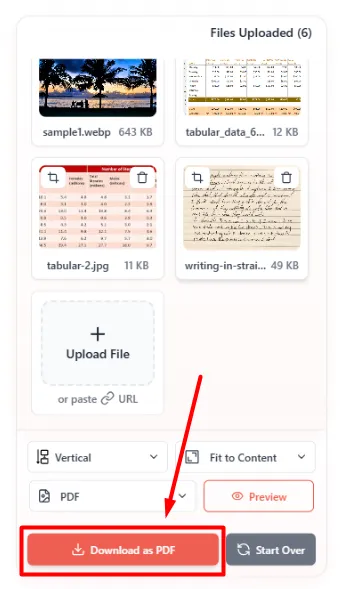
3 Select "PDF" as Output
Once your images are uploaded, select "PDF" as output and click the "Convert" button.

4 Download Your PDF
Tap the Download button to save the converted PDF file to your iPhone.
How to Merge Multiple Images Into a Single PDF on iPhone
This one is for you if you have several photos that need to go into one PDF document.
Say you photographed three pages of a contract. Or you have five product images for a client. You want them all in one clean PDF file.
Here is how to do it using the Merge JPG tool on JPG Converters.
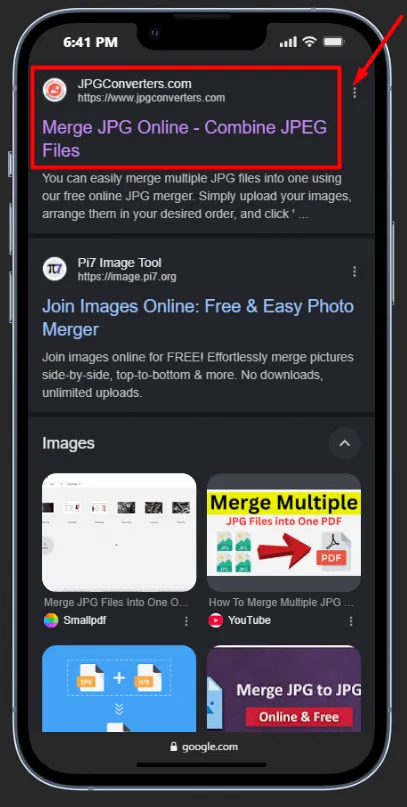
2 Upload All Your Images
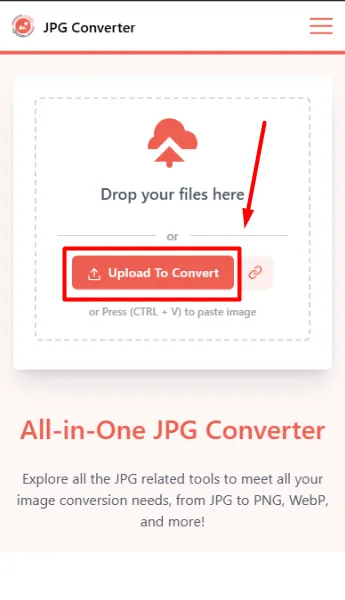
Tap the upload area and select all the images you want to combine.
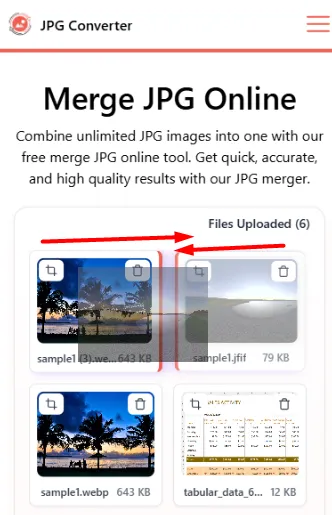
3 Arrange the Order
Before converting, arrange the images in the order you want them to appear in the PDF. Just drag them into position.
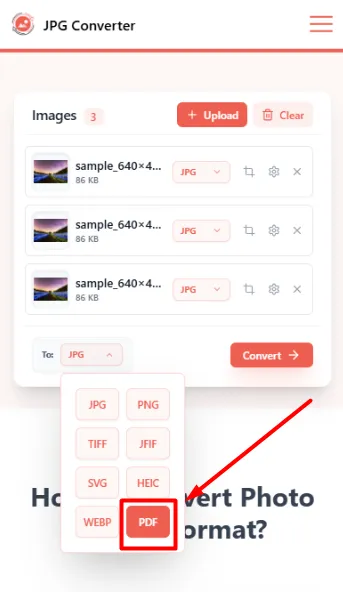
4 Select Styles
Select orientation styles, image sizing, and choose "PDF" in the output option.
5 Download
Tap the Merge button. The tool will combine all your images into one PDF. Tap Download and save it to your iPhone.
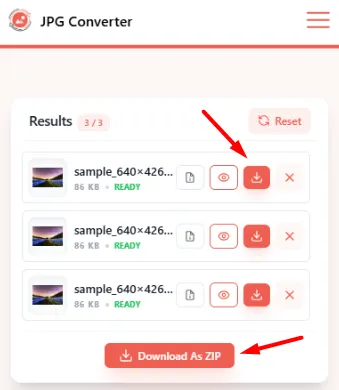
That is the easiest way to turn multiple iPhone photos into a single PDF without any app or desktop software.
Other Built-In iPhone Methods
Your iPhone does have a basic built-in option. Here is how it works.
Open your Photos app. Select the photo you want to convert. Tap the Share icon. Scroll down and tap Print. Then pinch and zoom out on the print preview. This opens the image as a PDF. Tap Share again to save or send it.
It works for a quick one-off conversion. But it has real limits.
You cannot convert multiple images to PDF at once. You cannot merge images into one PDF. There are no quality options. And the process is confusing if you have not done it before.
For anything more than a single quick conversion, JPGConverters is the better choice on iPhone.
Final Thoughts
Converting a JPG to PDF on iPhone does not have to be complicated.
Skip the workarounds. Go straight to JPGConverters.com on your iPhone browser. Upload your image, hit convert, and download your PDF in seconds.
Whether you need to convert a single image to PDF or merge images into a single PDF, JPGConverters.com handles both effortlessly. It is the most complete image to PDF solution available on iPhone without installing a single app.